Microsoft announced Device Association for Windows Autopilot Device Preparation on August 27, 2026. It is one of those features that sounds incremental until you understand what problem it actually solves.
The problem it solves
Traditional Autopilot ties the provisioning experience to the user signing in. That works well in most scenarios, but it breaks down when you need the device — not the user — to determine which policy and experience gets applied.
A concrete example: one employee enrolls multiple devices that serve different purposes. A shared kiosk, a field laptop, a standard office machine. With user-based assignment, whoever signs in gets their profile. With device association, each piece of hardware gets its own policy attached to it before enrollment even begins — regardless of who signs in.
That shift from user-centric to device-centric provisioning is the core of what this feature delivers.
What device association actually does
Before this feature, Autopilot Device Preparation recognized devices based on the user signing in during OOBE. Device association adds a new step before that: binding the physical hardware to your tenant using hardware-backed attestation.
The association is stored in the device’s UEFI firmware — not in the OS, not in a registry key. It persists across Windows reset, OS reinstallation, and removal of enrollment. That makes it genuinely durable in a way that software-based identifiers are not.
When an associated device connects to a network during OOBE, it finds its pre-association record automatically and completes the trust relationship. No manual intervention from the employee.
Associated devices are also automatically marked as corporate-owned, which means you no longer need to upload a separate corporate identifier for those devices.
The workflow
The process is designed as a clear handoff between IT and the device.
Step 1. Create the device preparation policy in Intune — apps, scripts, deployment settings, OOBE experience, optional device name template.
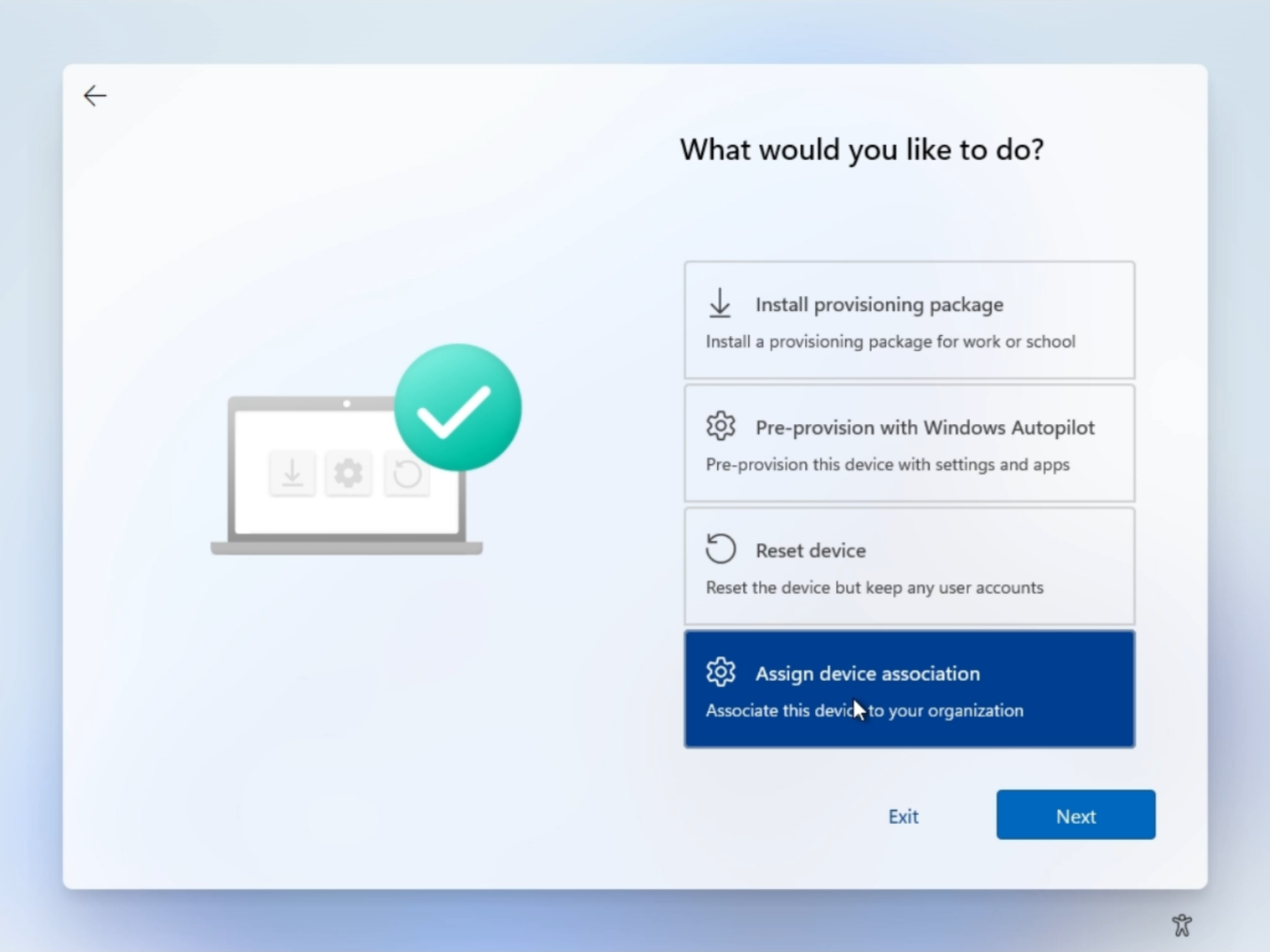
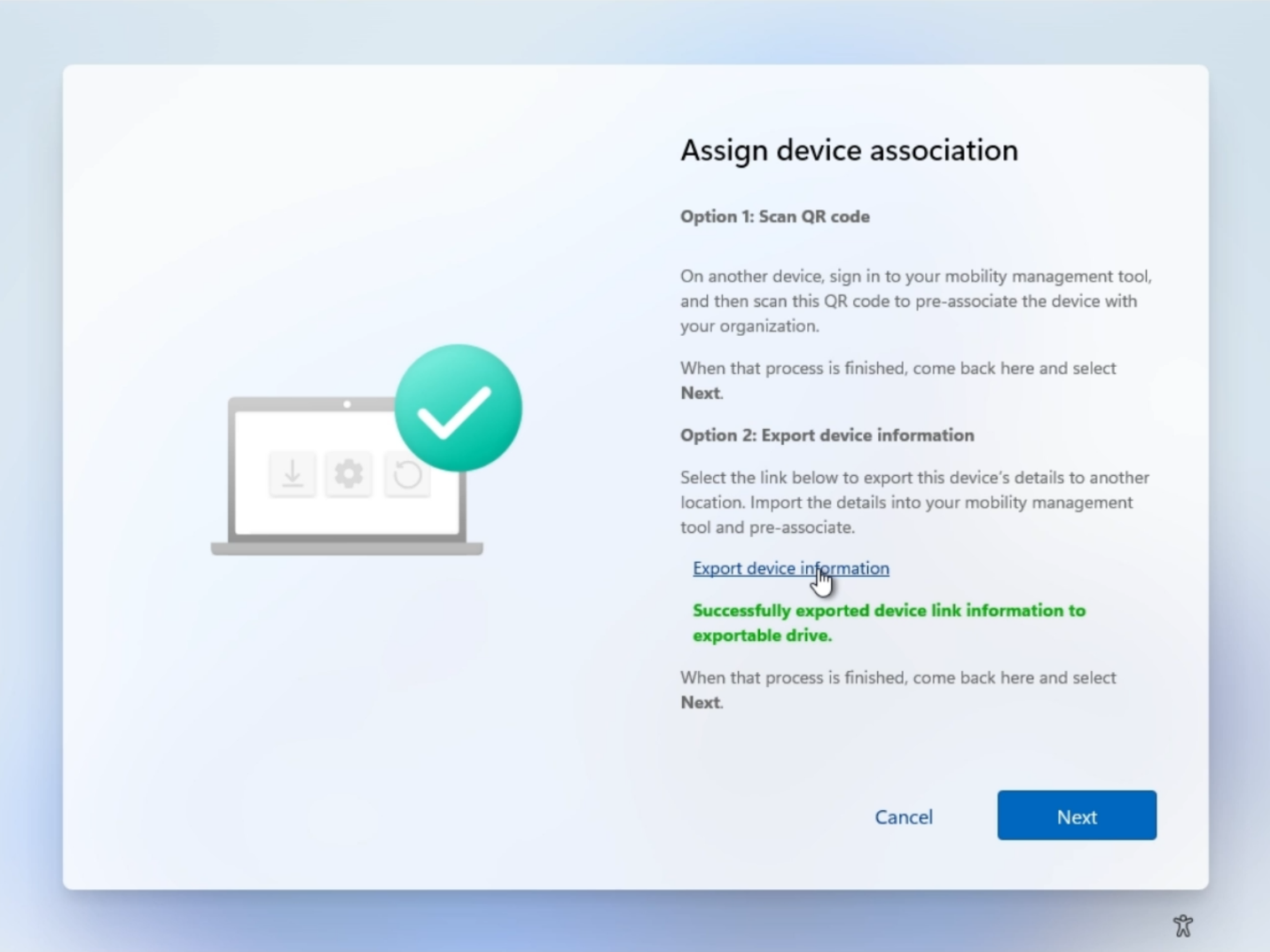
Step 2. During OOBE, a technician opens the Autopilot menu and selects Assign device association to export the DeviceLink CSV to a USB drive.
Two options are available at this step: scan a QR code from another device already signed into Intune, or export the device information as a CSV file to import manually.
Step 3. In Intune admin center go to Devices > Enrollment > Device association > Devices, upload the CSV, and optionally assign a device preparation policy directly to the device.
Step 4. When the device connects to a network in OOBE, it finds the pre-association record and completes association automatically. A technician can also trigger this manually from the Autopilot menu.
Step 5. The device receives the device-targeted policy, is marked corporate-owned, and presents the configured OOBE experience.
The association states to monitor in the Device association blade:
- Pre-associated — waiting to complete association in OOBE
- Associated — tenant affinity written to UEFI, ready for enrollment
- Pending removal — removal request in progress
OOBE controls unlocked by device association
Beyond the policy targeting story, device association unlocks a set of OOBE customization options not previously available in Device Preparation:
- Pre-configure language and region
- Automatically set keyboard layout and skip the keyboard selection screen (on ethernet — Wi-Fi connections still show it)
- Hide the Microsoft Software License Terms page
- Hide privacy settings during OOBE
- Apply a device name template using serial number or a randomized value
- Hide account-change options on company sign-in and domain error pages
For large deployments these controls meaningfully reduce the number of decisions an employee has to make during first boot and help create a consistent, repeatable experience across the fleet.
Lifecycle and decommissioning
The UEFI-stored association persists through reset and redeployment — useful during normal device reuse inside the organization.
When a device permanently leaves the organization (sold, recycled, transferred), the association must be removed by running a local script on the physical device. Because the trust is stored in UEFI rather than purely in the service, physical access to the hardware is required for full removal.
This is intentional: the association is durable during the device’s life inside the organization, while permanent removal requires physical control of the hardware.
Coexistence with traditional Autopilot
Device association coexists with traditional Autopilot deployments in the same tenant. The precedence rule is straightforward: if a device is associated, Device Preparation takes precedence; if it is not associated, the traditional Autopilot registration takes precedence.
That gives organizations a clean migration path — introduce device association for new hardware while existing Autopilot registrations continue working without changes.
Requirements
- Physical Windows 11 device with TPM 2.0 enabled and healthy
- Virtual machines are not supported — device association relies on hardware-backed identity verification
Why this matters
Device association is a meaningful step toward hardware-rooted device identity in Intune-managed environments. The UEFI persistence story is the key detail: this is not a soft Intune object that disappears on a wipe. The trust follows the hardware.
For organizations running large Autopilot deployments, the ability to target policy at the device rather than the user — combined with the extended OOBE controls — makes provisioning more predictable and reduces the surface for configuration drift.
Worth testing in a pilot group if you are running Autopilot Device Preparation.